第11章Webアプリケーション開発
Creating and Registering the Todo AppTodoアプリの作成と登録
Once the Django project is successfully completed and set up, the next step is to create the Todo application and register it in the Django project. To accomplish this, run the following command:
Djangoプロジェクトの作成と設定が正常に完了したら、次にTodoアプリケーションを作成し、Djangoプロジェクトに登録する。そのために、次のコマンドを実行する。
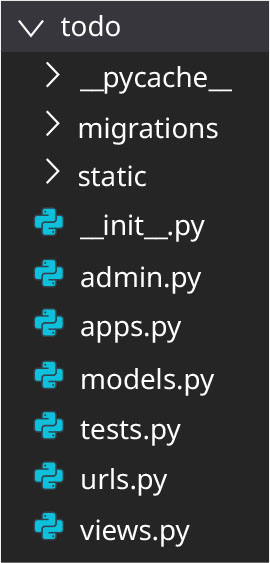
$ python manage.py startapp todoThe todo/ directory will be generated under the Django project directory, BootstrapDjangoToDoApp/. Files related to the Todo application will be generated as shown in Figure 11.18.
DjangoプロジェクトのディレクトリBootstrapDjangoToDoApp/の下に、todo/ディレクトリが生成される。図11.18のように、Todoアプリケーションに関連するファイルが生成される。
rendered in Django, a registered trademark of the Django Software Foundation; attribution: Copyright Rice University, OpenStax, under CC BY 4.0 license · CC BY 4.0 · Source出典
Figure 11.18 This shows the todo/ directory, which is generated under the Django project directory, BootstrapDjangoToDoApp/. (rendered in Django, a registered trademark of the Django Software Foundation; attribution: Copyright Rice University, OpenStax, under CC BY 4.0 license)
図11.18 DjangoプロジェクトのディレクトリBootstrapDjangoToDoApp/の下に生成される、todo/ディレクトリ。(Djangoで表示。DjangoはDjango Software Foundationの登録商標。出典:Copyright Rice University, OpenStax、CC BY 4.0ライセンス)
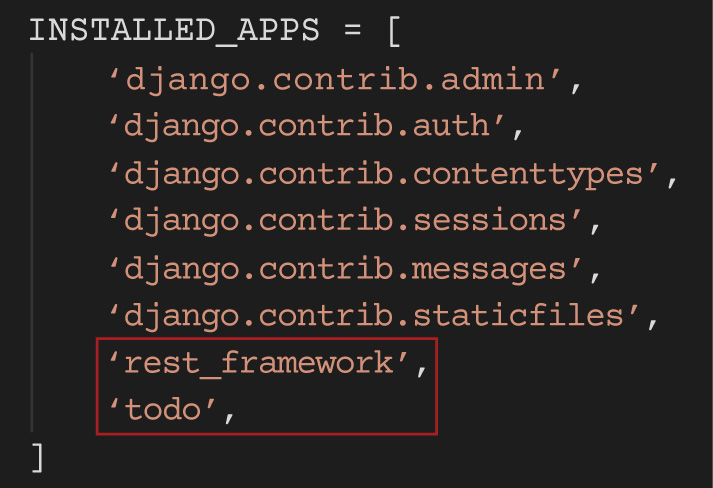
Next, the Todo application must be registered in the Django project as an installed app so that Django can recognize it. To do this, open the ToDoApp/settings.py file. Look for the INSTALLED_APPS variable as seen in Figure 11.19. Add ‘todo’ to the list as shown. Because the Django REST Framework will be used, also add ‘rest_framework’ to the list.
次に、Djangoが認識できるように、Todoアプリケーションをインストール済みアプリとしてDjangoプロジェクトに登録する必要がある。そのために、ToDoApp/settings.pyファイルを開く。図11.19にあるINSTALLED_APPS変数を探し、図のようにリストへ‘todo’を追加する。Django REST Frameworkも使うので、‘rest_framework’もリストに追加する。
rendered in Django, a registered trademark of the Django Software Foundation; attribution: Copyright Rice University, OpenStax, under CC BY 4.0 license · CC BY 4.0 · Source出典
Figure 11.19 To register the Todo application in the Django project as an installed app, the list of installed apps should include ‘rest_framework’ and ‘todo’. (rendered in Django, a registered trademark of the Django Software Foundation; attribution: Copyright Rice University, OpenStax, under CC BY 4.0 license)
図11.19 TodoアプリケーションをDjangoプロジェクトのインストール済みアプリとして登録するには、インストール済みアプリのリストに‘rest_framework’と‘todo’を含める。(Djangoで表示。DjangoはDjango Software Foundationの登録商標。出典:Copyright Rice University, OpenStax、CC BY 4.0ライセンス)
Define the Todo ModelTodoモデルの定義
Once you register and install the ToDo web application, you will be able to create todo tasks, which can be assigned categories. The next step is to create the models. Two models will be created for Category and TodoList. Open the todo/models.py file and add the code shown.
英語のヒント
ToDo Webアプリケーションを登録し、インストールすると、カテゴリーを割り当てられるtodoタスクを作成できるようになる。次の手順は、モデルの作成である。CategoryとTodoListの2つのモデルを作る。todo/models.pyファイルを開き、次のコードを追加する。
# -*- coding: utf-8 -*-
from __future__ import unicode_literals

from django.db import models
from django.utils import timezone

# Create your models here.
class Category(models.Model):

  name = models.CharField(max_length=100)

  class Meta:
    verbose_name = ("Category")
    verbose_name_plural = ("Categories")

  def __str__(self):
    return self.name

class TodoList(models.Model):
  title = models.CharField(max_length=250)
  content = models.TextField(blank=True)
  created = models.DateField(default=timezone.now().strftime("%Y-%m-%d"))
  due_date = models.DateField(default=timezone.now().strftime("%Y-%m-%d"))
  category = models.ForeignKey(Category, default="General",
on_delete=models.DO_NOTHING)
  class Meta:
    ordering = ["-created"] # order by most recently created
  def __str__(self):
    return self.title
The Category and TodoList Python classes describe the properties for the models for Category and TodoList tables, respectively. The TodoList model contains a ForeignKey field to the Category model. Each todo item will be associated with one category. After creating the models, a migration file needs to be generated to create the physical tables in the database. To generate the migration file, run the following command:
英語のヒント
PythonのCategoryクラスとTodoListクラスは、それぞれCategoryテーブルとTodoListテーブルのモデルの属性を記述する。TodoListモデルには、CategoryモデルへのForeignKeyフィールドが含まれる。各todo項目は、1つのカテゴリーに対応付けられる。モデルを作成した後、データベース内に実際のテーブルを作るため、マイグレーションファイルを生成する必要がある。生成するには、次のコマンドを実行する。
$ python manage.py makemigrations todoThis command will generate a migration file in todo/migrations/, which will look like the following code.
このコマンドによって、todo/migrations/内にマイグレーションファイルが生成される。内容は、次のコードのようになる。
# Generated by Django 4.0.1 on 2022-01-30 21:14

from django.db import migrations, models
import django.db.models.deletion


class Migration(migrations.Migration):

  initial = True

  dependencies = [
  ]

  operations = [
     migrations.CreateModel(
        name='Category',
        fields=[
           ('id', models.BigAutoField(auto_created=True, primary_key=True,
serialize=False, verbose_name='ID')),
           ('name', models.CharField(max_length=100)),
        ],
        options={
           'verbose_name': 'Category',
           'verbose_name_plural': 'Categories',
        },
     ),
     migrations.CreateModel(
        name='TodoList',
        fields=[
           ('id', models.BigAutoField(auto_created=True, primary_key=True,
serialize=False, verbose_name='ID')),
           ('title', models.CharField(max_length=250)),
           ('content', models.TextField(blank=True)),
           ('created', models.DateField(default='2022-01-30')),
           ('due_date', models.DateField(default='2022-01-30')),
           ('category', models.ForeignKey(default='General',
on_delete=django.db.models.deletion.DO_NOTHING, to='todo.category')),
        ],
        options={
           'ordering': ['-created'],
        },
     ),
  ]
The next step is to apply the changes in the migration file to the database, which is accomplished by running the following command:
次に、マイグレーションファイルに記された変更をデータベースへ適用する。これは、次のコマンドを実行することで行う。
$ python manage.py migrateFor this application, Django uses the default sqlite3 (db.sqlite3) database. Please note that Django supports other databases as well, including MySQL and PostgreSQL. To define the Todo model, you can use the default Django admin interface to perform CRUD operations on the database. To use the admin interface, open the todo/admin.py file and register the models as seen in the following code snippet.
英語のヒント
このアプリケーションでは、Djangoは既定のsqlite3(db.sqlite3)データベースを使う。Djangoは、MySQLやPostgreSQLなどのほかのデータベースにも対応している。Todoモデルを定義するには、Djangoの標準の管理インターフェースを使って、データベースに対するCRUD操作を行える。管理インターフェースを使うには、todo/admin.pyファイルを開き、次の短いコード例のようにモデルを登録する。
# -*- coding: utf-8 -*-
from __future__ import unicode_literals

from django.contrib import admin
from . import models

# Register your models here.
class TodoListAdmin(admin.ModelAdmin):
  list_display = ("title", "created", "due_date")

class CategoryAdmin(admin.ModelAdmin):
  list_display = ("name",)

admin.site.register(models.TodoList, TodoListAdmin)
admin.site.register(models.Category, CategoryAdmin)
The next step is to create a superuser account that allows access to the admin interface. To do this, run the following command and follow the prompts to enter a username, email address, and password for the superuser.
英語のヒント
次に、管理インターフェースへアクセスできるスーパーユーザーのアカウントを作成する。そのために、次のコマンドを実行し、表示される指示に従って、スーパーユーザーの利用者名、電子メールアドレス、パスワードを入力する。
$ python manage.py createsuperuserOnce this step is complete, restart the server using the following command:
この手順が完了したら、次のコマンドでサーバーを再起動する。
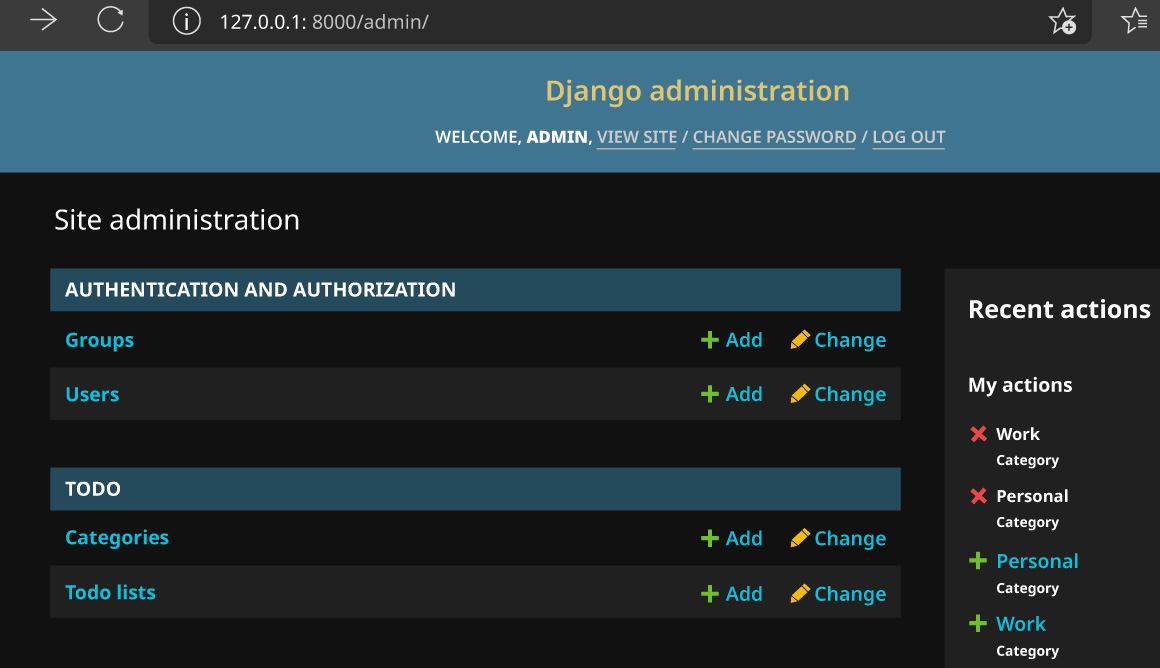
$ python manage.py runserverAfter this is complete, open a browser and navigate to http://localhost:8000/admin/. To access the admin interface, log in with the credentials that you set up for the superuser. When you log in to the admin interface, you should see the following page from Figure 11.20. On this page, you will have the ability to create, edit, and delete categories and todo items.
英語のヒント
完了したら、ブラウザーを開き、http://localhost:8000/admin/へ移動する。管理インターフェースへアクセスするには、スーパーユーザーに設定した認証情報でログインする。ログインすると、図11.20のページが表示されるはずである。このページで、カテゴリーやtodo項目の作成・編集・削除を行える。
rendered in Django, a registered trademark of the Django Software Foundation; attribution: Copyright Rice University, OpenStax, under CC BY 4.0 license · CC BY 4.0 · Source出典
Figure 11.20 The admin interface is where superusers can create, edit, and delete categories and todo items in the Todo web application. (rendered in Django, a registered trademark of the Django Software Foundation; attribution: Copyright Rice University, OpenStax, under CC BY 4.0 license)
図11.20 管理インターフェースでは、スーパーユーザーが、Todo Webアプリケーションのカテゴリーとtodo項目を作成・編集・削除できる。(Djangoで表示。DjangoはDjango Software Foundationの登録商標。出典:Copyright Rice University, OpenStax、CC BY 4.0ライセンス)